
Which file types can customers upload?
STL, OBJ, 3MF, STEP and STP, IGES and IGS, and SolidWorks part files, up to 100 MB each. You can narrow the list in Settings, and the page then refuses anything else.
A customer upload page for 3D print shops is a form where customers add their model files, choose a material and quantity for each, and send a request that arrives in 3D Job Desk as a job with the files attached.
A quote request by email means a file attachment, a missing material and three follow-up questions. An upload page asks for those things first. The customer picks a material and a quantity for each file, adds contact details and sends. You get a job with the files already attached.
A link. Every desk has a customer page with a link. Put it on a button, a menu item, an email signature or a social profile. An embed. The desk gives you a short embed code (an iframe). Paste it into a page on your own site and the upload form appears there. The desk has steps for WordPress, Wix, Squarespace, Webflow and Shopify, and a generic version for any site that accepts HTML. If your site builder strips the code, use the link on a button instead. Test it the way a customer would: open the page in a private window, upload a file and send it. The job arrives in Jobs, in the Inbox stage, and the staff you chose get a "new quote request" email.
The customer page accepts STL, OBJ, 3MF, STEP and STP files, plus IGES and IGS and SolidWorks part files. Each file can be up to 100 MB. You can narrow the list in Settings, for example to .stl and .3mf only, and the page then refuses anything else. Customers see a 3D preview of each model. They choose a material and quantity per file. If you turn on instant quote, they also see an estimated price per file, marked as an estimate you confirm. See 3D print quoting software.
Uploaded files are saved as a cart. The customer can come back with a resume link. A cart that nobody touches for 30 days is deleted with its files. The Abandoned carts page in your desk shows what is waiting, so you can follow up.
After sending, the customer lands on a job page with a private link. It shows the job's stage in your own workflow words (for example Received, Quote sent, Printing, Ready), any photos you attach, and a timelapse if you recorded one. Once you send a quote, they can download it as a PDF there. The job link contains a random job ID. Nobody can browse other customers' jobs from it.

Customers can also sign in to a portal with a code sent to their email. There they see their jobs, message the shop, and press Order again to start a new cart from parts they have already sent. No password to remember.
• WordPress: paste the embed code into a Custom HTML block. • Fusion 360: customers who design in Fusion can send the open design with a small add-in. Their browser opens a cart where they pick a material and send it as usual. You send them the download and your link.
1. Sign in and open Account. Copy your link and your embed code. 2. In Settings, check which file types you accept and whether Instant quote is on. 3. Paste the embed code into a page on your site, or put the link on a button. 4. Open the page in a private window, upload a model, pick a material and send. 5. Find the job in your Inbox, review it and send yourself the quote. If something looks wrong, such as a blank form inside your site, the embed was probably stripped by your site builder. Use the link on a button, or contact support at help@3djobdesk.com.
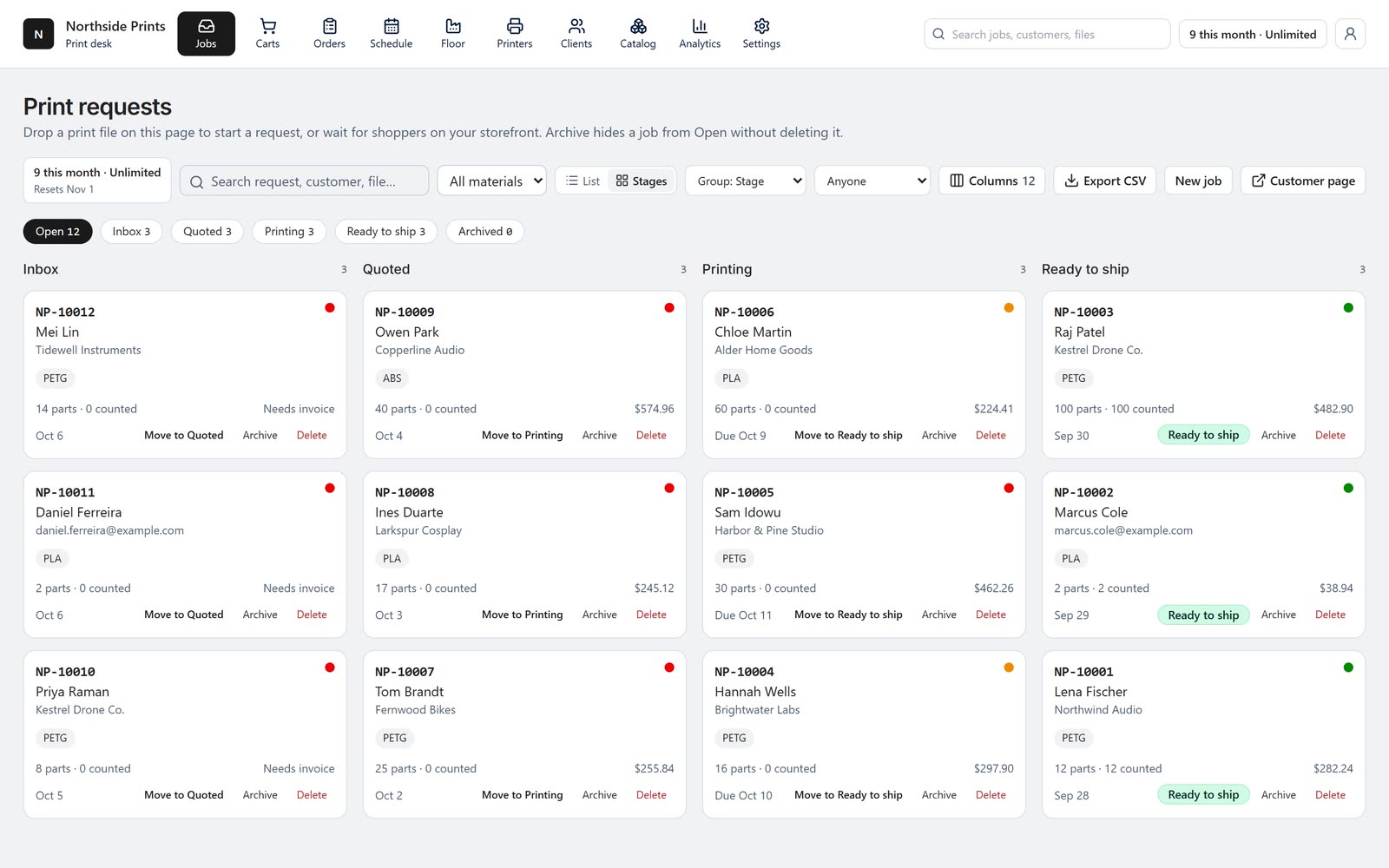
Customers upload. They do not get a price you did not approve, and they do not start a job on their own. You review the files, set the price and send the quote.
STL, OBJ, 3MF, STEP and STP, IGES and IGS, and SolidWorks part files, up to 100 MB each. You can narrow the list in Settings, and the page then refuses anything else.
Copy the short embed code (an iframe) from Account and paste it into a page on your site, or put your customer page link on a button. The desk has steps for WordPress, Wix, Squarespace, Webflow and Shopify. If your site builder strips the code, use the link.
Not to upload and send. After sending, the customer gets a job page on a private link. Returning customers can sign in to a portal with a code emailed to them, so there is no password.
Uploaded files are saved as a cart and the customer can return with a resume link. A cart nobody touches for 30 days is deleted along with its files.
A price shows only if you turn on Instant quote, and it is marked as an estimate you confirm. Customers do not pay on the upload page: you send a quote, they approve by replying to the email.
Yes, with a small add-in your shop shares with them. Their browser opens a cart where they pick a material and send it as usual.
Start a free trial, copy your link from Account, and send yourself a test file.
15 days free. Cancel before the trial ends and you won't be charged.
Related: